From import to review
A short path through AudioReader: bring a book in, transcribe what was spoken, follow the words, save vocabulary, and review it in context.
1Import
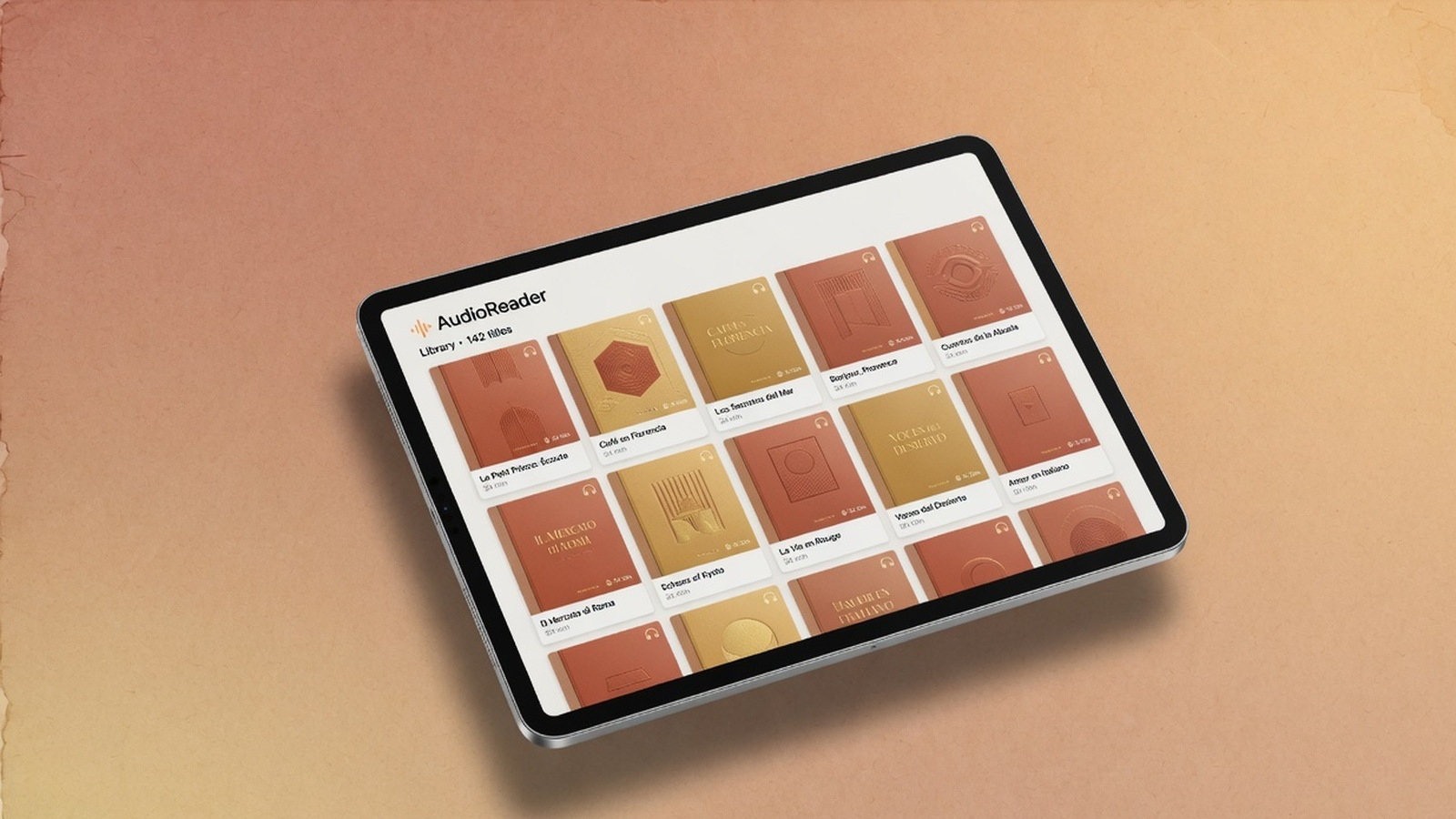
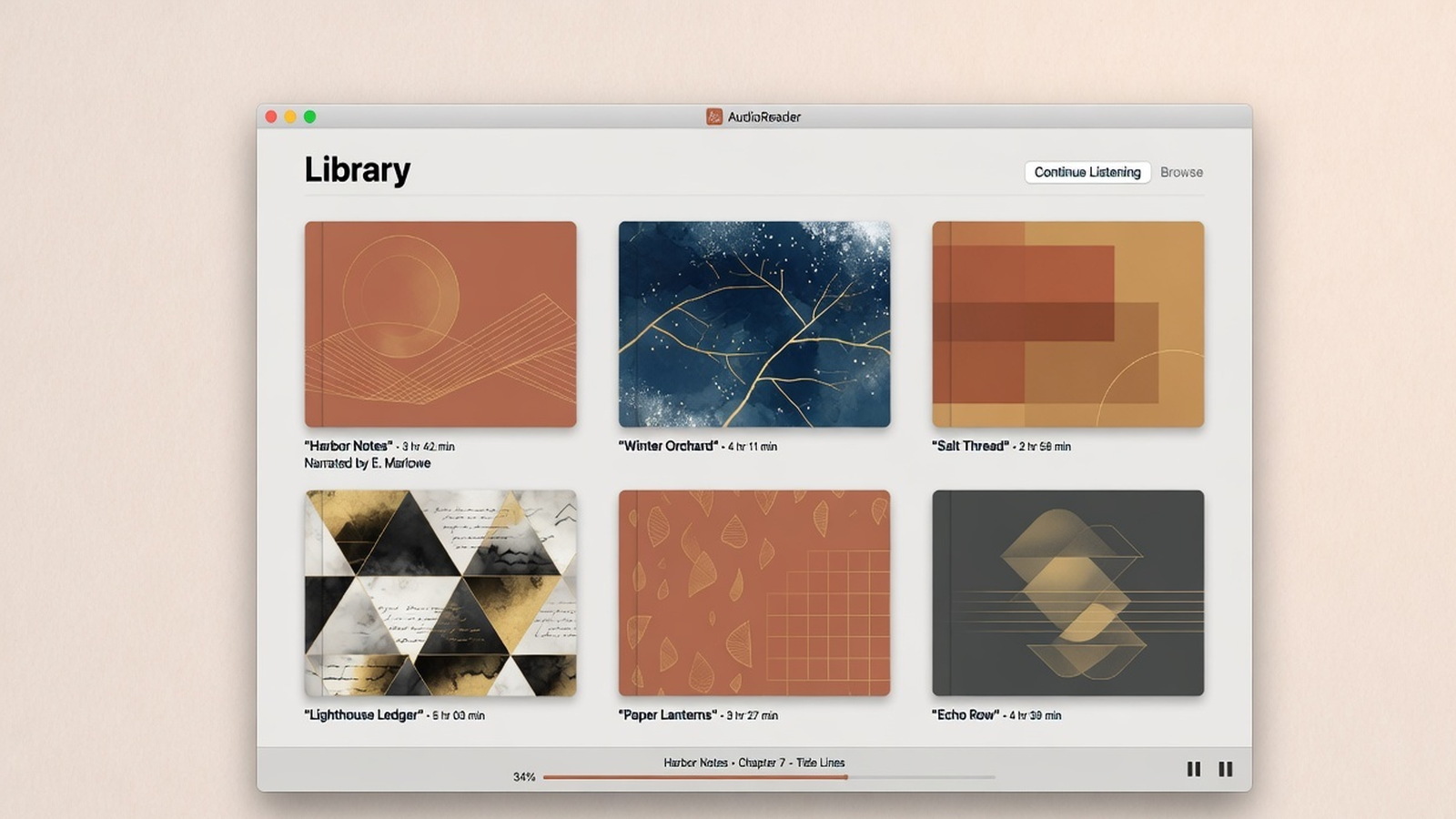
On an empty library, choose Import Files. Audio becomes an audiobook; a DRM-free EPUB becomes an ebook. They never mix. A folder with both imports as two books. On Mac, use Sources to import files or a folder. On iPad, import from Files, iCloud Drive, or the media library for audiobooks the system exposes. Supported audio includes MP3, M4A, M4B, AAC, WAV, and CAF. Covers can be JPG, PNG, or WebP.
2Transcribe
For an audiobook, set the spoken language in Settings → Languages, open a chapter, and choose Transcribe. The first run may download Apple SpeechAnalyzer language assets for that locale. If Apple does not provide the selected on-device locale for your OS and device, AudioReader reports it as unavailable. Ebooks open as published EPUB text and do not use transcription.
3Follow the words
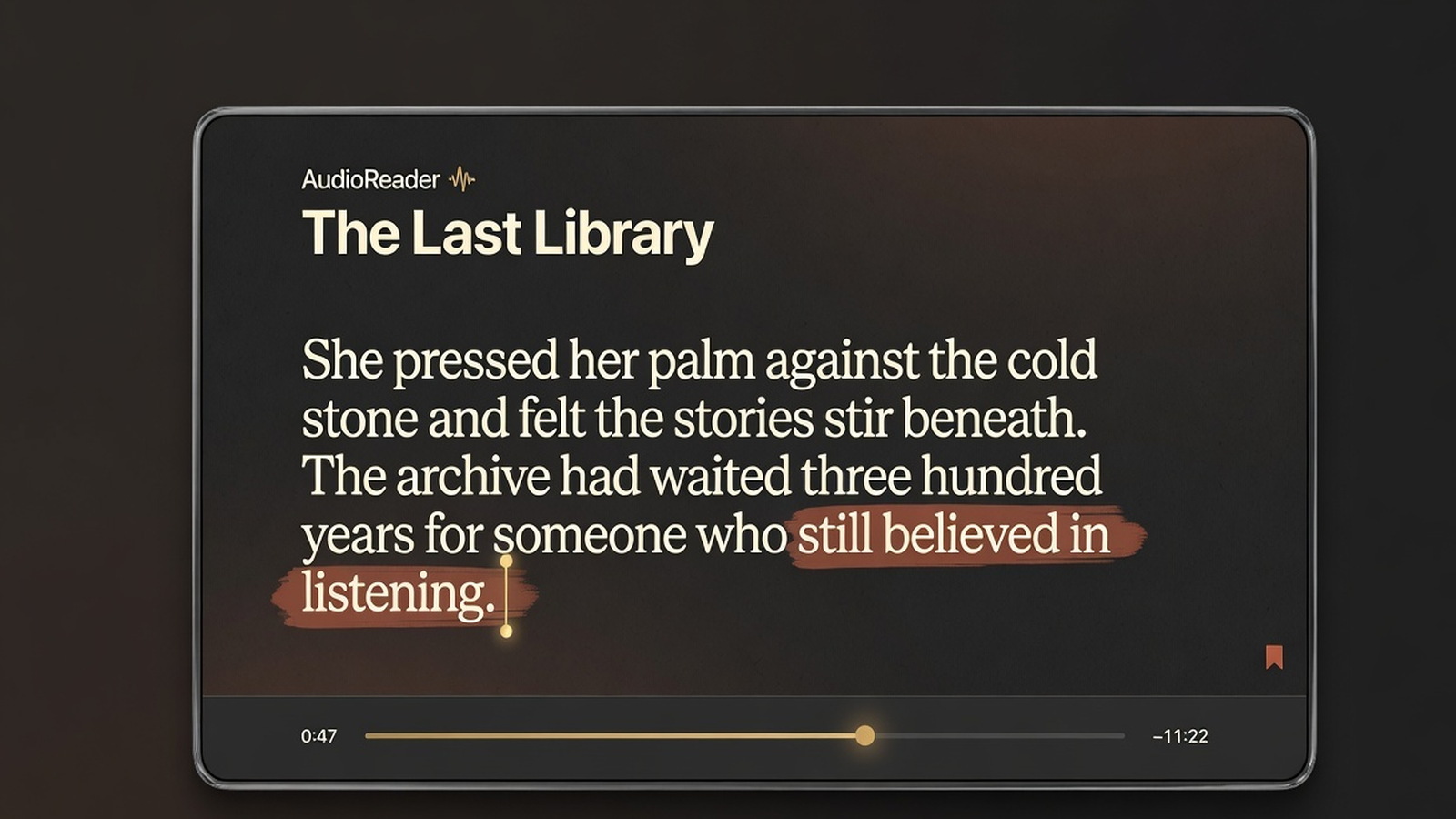
Play the chapter and use the highlighted transcript to follow, seek, replay, or loop a sentence. The transcript is the timing source for audiobooks. Sentence clip playback uses the same sentence resolver as review and export.

4Save vocabulary
Select a word for dictionary lookup or save it to Vocabulary with the original sentence, book, chapter, and timestamp. Open in text returns you to that passage. Study overlay can underline unknown and learning words across the chapter.
5Review
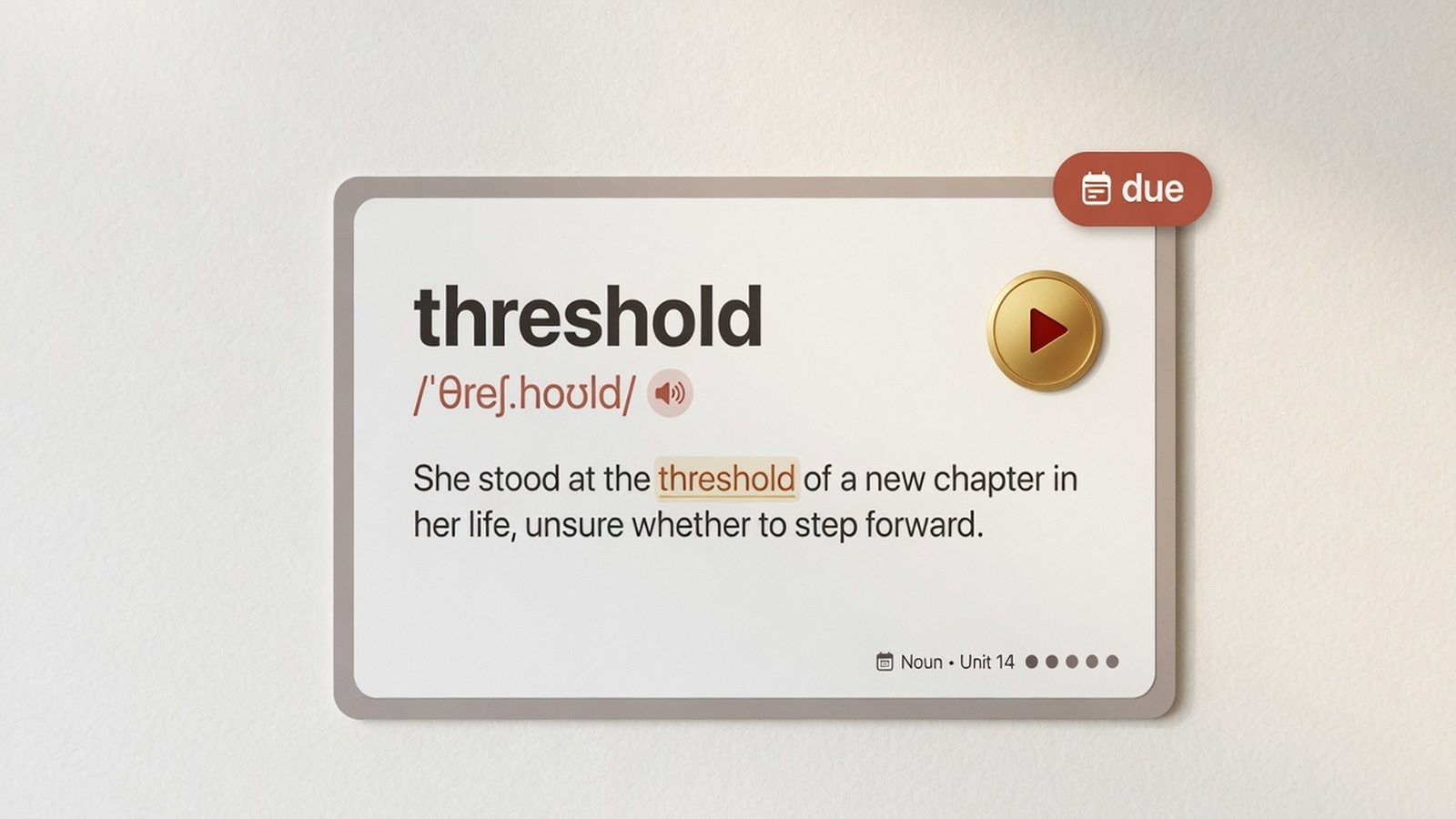
Words opens on Today with due cards first, then a bounded number of new cards. Grades update the schedule locally. You can still play the original sentence clip. When an optional account has Sync learning data on, those records can copy to your account; source audio and EPUBs stay on the device.
Optional AI
Translation, summaries, chapter chat, and quick quiz are available after you sign in and grant versioned AI permission in Settings → AI. Local reading, dictionary lookup, transcription, and vocabulary keep working if you choose Not now.